How to Edit Text in a PDF Online for Free
Change, delete or add text in a PDF straight from your browser: scan the page, tap a line, replace the text, adjust color and size, and save the new file.
PDFs are built to keep their layout, which makes them hard to change. A browser-based PDF text editor lets you fix a typo, update a date or add a line without going back to the original file.
Step by step
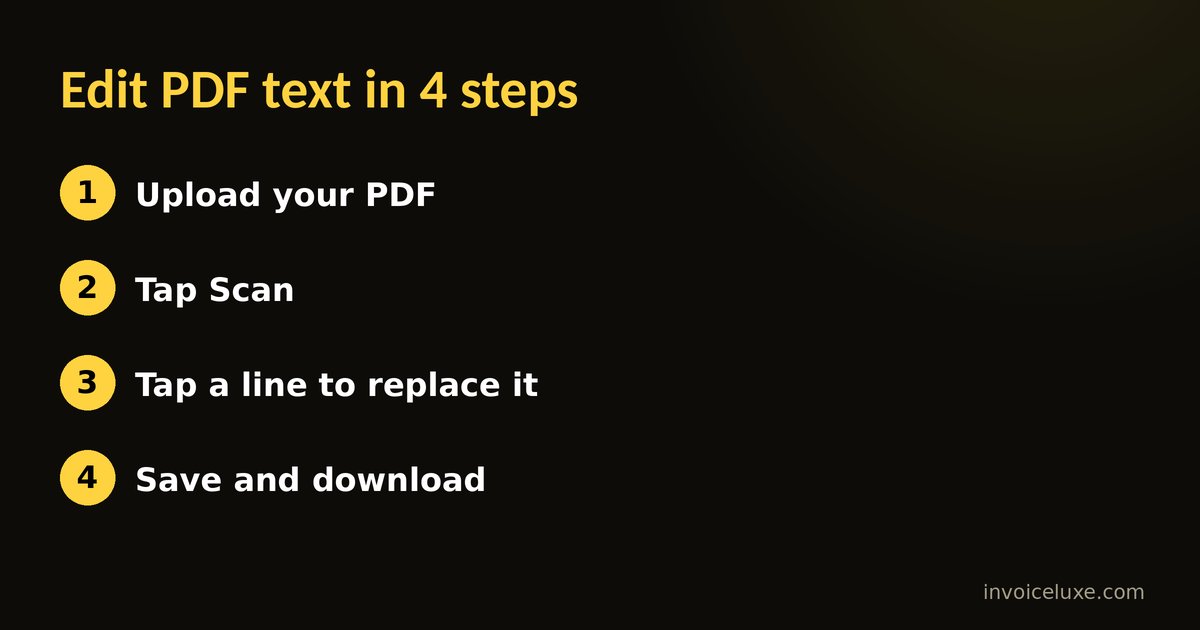
- Open the PDF text editor and upload your file.
- Tap Scan. The editor detects the lines of text on the page so you can select them.
- Tap a line you want to change.
- Replace or delete it. Type the new text. You can choose the text color, set the size and turn on bold. A preview shows how the new line will look.
- Add new text with the Add Text button if you need an extra line.
- Save the changes and download the updated PDF.
Want to try it right away? PDF Text Editor is free and needs no signup.
Tips for better results
- Scan first. Lines only become selectable after the scan, so run it before you try to tap a line.
- Check the preview before you save. It shows the text size and color you picked.
- Keep the size similar to the surrounding text so the edit blends in.
- Edit one line at a time and review the page after each change.
- Keep the original. Save the edited file under a new name.
When this works best
Editing is useful for fixing a typo in your own invoice, updating a date or an address on a form you created, or adding a note to a document. For heavy layout changes, edit the source file in the program that created it, then export a new PDF.
Edit only what you are allowed to edit
Changing the content of documents you do not own, such as contracts signed by someone else, official records or identity documents, can be illegal and can cause real harm. Use a PDF editor for your own documents and for changes the other party has agreed to.
FAQ
Is the PDF text editor free?
Yes. It is free and works in your browser, without an account.
Why do I have to scan before editing?
The scan finds the text lines on the page, which lets you tap a line to replace or delete it.
Can I change the text color and size?
Yes. When you replace a line you can choose the color, the size and bold.
Will the new text look exactly like the old font?
It may differ slightly, so check the preview and adjust the size before saving.